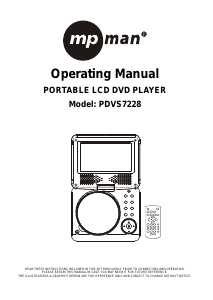
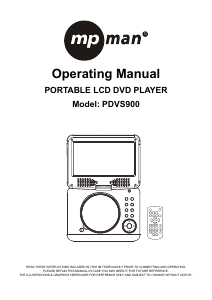
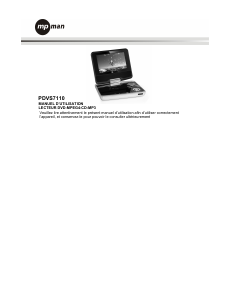
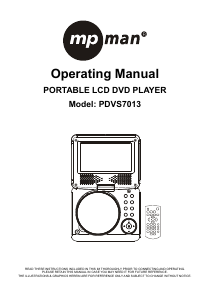
Mode d’emploi Mpman PDVS7013 Lecteur DVD

Besoin d'un mode d’emploi pour votre Mpman PDVS7013 Lecteur DVD ? Ci-dessous, vous pouvez consulter et télécharger gratuitement le mode d’emploi PDF en français. Ce produit a actuellement 2 questions fréquemment posées, 0 commentaires et 0 votes. Si ce n'est pas le mode d’emploi que vous souhaitez, veuillez nous contacter.

Votre produit est défectueux et le mode d’emploi n’offre aucune solution ? Rendez-vous à un Repair Café pour obtenir des services de réparation gratuits.

Mode d’emploi

Loading…

GB-4
show folders of corresponding format on the disc.
2. Select the folder you want by the navigation buttons
and then press OK button to confirm.
3. The files in this folder are displayed and select your
favourable track via navigation buttons and press ok
button to start playback.
4. Press NEXT and PREVIOUS button to select track
directly.
5. Press REPEAT button change play mode.
KODAK PICTURE CD / JPEG CD PLAYBACK
Load a Kodak picture CD/JPEG CD disc onto the disc
tray, then select picture option to play the disc with
navigation left/right button and press OK Button to
confirm.
Slide show of Kodak Picture CD begins automatically;
Folders of JPEG picture CD are displayed on the TV
screen; use the navigation buttons on the remote to
select the desired folder and then press OK button to
confirm.
The files in this folder are displayed and you can
select your favourite pictures using the up/down
navigation buttons on the remote and press OK button
to start playback.
Preview of the picture, resolution, size, date will be
displayed while you scroll across the file names.
KODAK PICTURE CD / JPEG CD OPERATIONS
1. PLAY MODES
Press REPEAT button to change play mode.
During playback, press STOP to enter preview mode.
2. SKIP TO NEXT/PREVIOUS PICTURE
Press NEXT button to skip to the next picture or
PREVIOUS button to the previous picture.
3. PICTURE ROTATIONS
Press RIGHT and LEFT navigation buttons to rotate
the picture Clockwise and anti-clockwise respectively.
4. PICTURE FLIP AND TURN
Press UP navigation button to flip the picture up or
down.
Press DOWN navigation button to flip the picture left
or right.
5. PICTURE ZOOM IN/OUT
Press ZOOM button continuously, the picture zooms in
by 2, 3, 4 times or zooms out by 1/2, 1/3, 1/4 of the
original size.
Press this button once more when the picture getting
1/4 size to return to the normal play.
If the picture is enlarged, you may use the navigation
buttons to view blocked parts of the picture.
6. SLIDE SHOW TRANSITION MODES
During slide show playback, press the PROGRAM
button cyclically to select one slide show transition
effect to play picture.
EXTERNAL MEMORY MEDIA OPERATION
(USB&SD/MMC CARD)
Prepare the player for External Memory media
operation
1. Slide the POWER ON/OFF switch to ON position,
Insert a USB data traveller filled with media files into
the USB port or plug the SD/MMC card into the card
slot. After the USB or the SD/MMC card is
successfully detected and read, a media menu
shows on the screen, select a corresponding media
type (picture, audio, video) to play the disc with
navigation left/right button and press OK Button to
confirm. Folders show on the screen and use
navigation buttons to select your desired folder and
track to play.
2. Press NEXT or PREVIOUS button to skip forward or
backward.
Note: Press and hold STOP button on the remote or
press DVD/USB/SD button on the unit to make
selection among USB, card and disc via navigation
LEFT/RIGHT button, confirm your selection by
pressing OK button.
CAUTION: To avoid electronic static discharge, don't
touch the USB port and card slot during playback.
INITIAL SETTINGS
Initial settings page is for you to make your preferred
settings up for your player. Once the initial settings are
done they are retained in the CPU of the player until
otherwise modified.
COMMON PROCEDURES FOR INITIAL SETTINGS
1. Press SETUP button to access the setup menu.
2. Use the navigation buttons to select the item you
want to modify, setting page with further setting
items displayed shows on the TV screen. Again use
navigation buttons to make changes. Press OK
button to confirm modifications.
3. Use navigation buttons to switch to another setting
on the main setting page.
4. Press SETUP button to exit main setting page.
1. SYSTEM SETUP
1.1 TV SYSTEM - it is used to select the TV mode.
Please select this option as per your TV set.
1.2 SCREEN SAVER - when the player is not in used
for several minutes, a running DVD logo will move
across the TV screen to protect the TV screen.
Options:
On: Screen saver is enabled
Off: Screen saver is disabled
1.3 TV TYPE - it is used to select the TV scan mode,
please set as per your TV set.
Options: 4:3PS : Normal Pan & scan mode
4:3LB : Normal Letter box mode
16:9 : 16:9 wide screen mode
1.4 PASSWORD - input password to unlock the
system. The steps are as follows:
1.4.1 Enter SYSTEM SETUP, select the PASSWORD
item by scrolling the down navigation button, and then
press the right navigation button to select the input
box.
1.4.2 Input user's password "0000" to unlock it, in this
case, select the input box again to change the
password by inputting another new four numeric
numbers and then press OK button to confirm. When
the password is changed, you are needed to input the
new one to unlock the system.
Télécharger mode d’emploi en Français (PDF, 1.95 MB)
(Tenez compte de l’environnement et imprimez ce manuel uniquement si c’est vraiment nécessaire)

Loading…

Évaluation

Dites-nous ce que vous pensez du Mpman PDVS7013 Lecteur DVD en laissant une note de produit. Vous voulez partager vos expériences avec ce produit ou poser une question ? Veuillez laisser un commentaire au bas de la page.
Etes-vous satisfait du Mpman PDVS7013 Lecteur DVD ?
Oui Non
Soyez le premier à évaluer ce produit
0 évaluations

Joignez-vous à la conversation sur ce produit

Ici, vous pouvez partager ce que vous pensez du Mpman PDVS7013 Lecteur DVD. Si vous avez une question, lisez d’abord attentivement le mode d’emploi. La demande d’un mode d’emploi peut être effectuée en utilisant notre formulaire de contact.

En savoir plus sur ce mode d’emploi

Nous comprenons qu’il est agréable d’avoir un mode d’emploi papier pour vos Mpman PDVS7013 Lecteur DVD. Vous pouvez toujours télécharger le mode d’emploi depuis notre site Web et l’imprimer vous-même. Si vous souhaitez disposer d’un mode d’emploi original, nous vous recommandons de contacter Mpman. Ils pourront peut-être fournir un mode d’emploi original. Recherchez-vous le mode d’emploi de votre Mpman PDVS7013 Lecteur DVD dans une autre langue ? Choisissez votre langue préférée sur notre page d’accueil et recherchez le numéro de modèle pour voir si nous l’avons disponible.

Caractéristiques

Marque Mpman
Modèle PDVS7013
Catégorie Lecteurs DVD
Type de fichier PDF
Taille du fichier 1.95 MB

Tous les modes d’emploi pour Mpman Lecteurs DVD
Plus de modes d’emploi de Lecteurs DVD

Foire aux questions sur Mpman PDVS7013 Lecteur DVD

Notre équipe d’assistance recherche des informations utiles sur les produits et des réponses aux questions fréquemment posées. Si vous trouvez une inexactitude dans notre foire aux questions, veuillez nous le faire savoir en utilisant notre formulaire de contact.

Un lecteur DVD peut-il également lire des CD ? Vérifié

Oui, la plupart des lecteurs DVD sont en mesure de lire des CD.

Cela a été utile (199) En savoir plus

Puis-je moi-même réparer des rayures sur un DVD ? Vérifié

Les rayures empêchent le laser de lire le disque correctement. Lorsque les rayures ne sont que superficielles, il est possible de les réparer soi-même en polissant le disque avec un composé légèrement abrasif. Idéalement, vous utilisez un composé abrasif professionnel, mais vous pouvez également utiliser un dentifrice ordinaire. Après avoir poli le disque, il faut le laver et laisser sécher. Il existe des entreprises spécialisées qui peuvent le faire.

Cela a été utile (92) En savoir plus
Mode d’emploi Mpman PDVS7013 Lecteur DVD

Produits connexes

Catégories associées

×
Download